
Conversion Tracking Code: Google Ads, Meta Pixel and GA4 Snippets

Conversion tracking code is a short JavaScript snippet that tells an ad or analytics platform when a visitor completes an action you care about, such as a purchase or a lead form. It always has two parts: a base code that loads on every page (the Google tag or the Meta Pixel) and an event code that fires only on the conversion, carrying its value. Below is the exact code for Google Ads, Meta and GA4, where to put it, and how to prove it works.
If you want the concept first (what counts as a conversion, attribution, why platforms disagree), read what conversion tracking is. This page is the hands-on part: the snippets themselves.
The two parts of every conversion tracking code
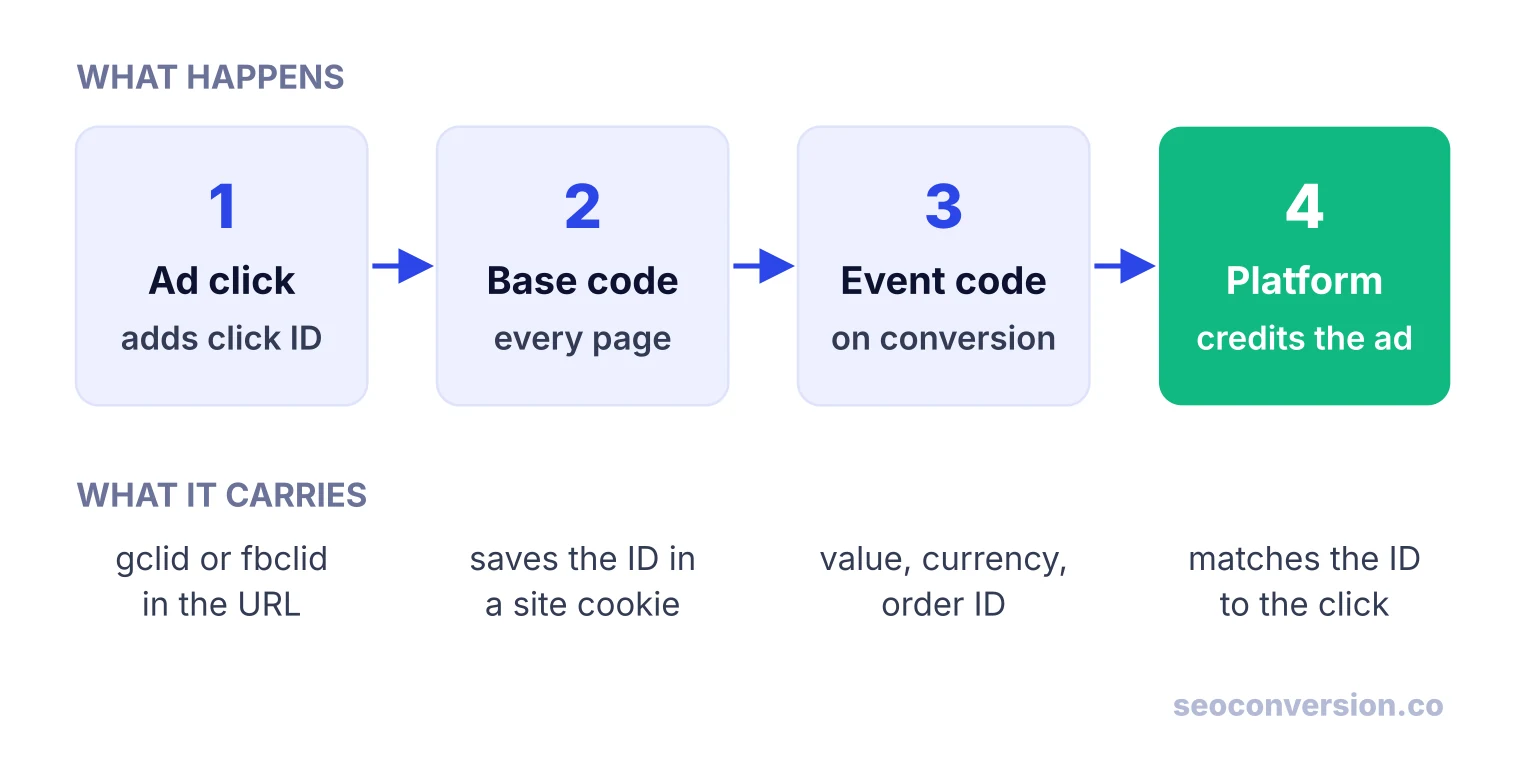
Every platform splits the job the same way, even if the names differ:
- Base code (Google tag, Meta Pixel base code, GA4 tag). It goes in the
<head>of every page. It loads the platform’s library, records page views, and reads the click ID the ad added to the URL (gclidfor Google,fbclidfor Meta), then keeps it in a first-party cookie on your domain. - Event code (Google calls it an event snippet, Meta a standard event). It runs only when the conversion happens and sends the conversion name, value, currency and an order ID.
The platform then matches the click ID in that conversion back to the ad click and credits the campaign. If the visitor never clicked an ad, the ad platform has nothing to match, which matters later for organic search.
Types of conversion tracking code
When people ask which tracking code they need, they usually mean one of these:
| Type | Examples | Where it runs | Use it for |
|---|---|---|---|
| Base tag | Google tag (gtag.js), Meta Pixel base code, GTM container | Head of every page | Loading the platform and keeping the click ID |
| Page-load event | Google Ads event snippet, fbq track on a thank-you page | Confirmation page only | Purchases and forms that redirect to a new URL |
| Click event | gtag_report_conversion, fbq inside a click handler | On the button, link or form success | Calls, downloads, forms that do not change the URL |
| URL rule (no code) | Google Ads conversion “with a URL”, Meta custom conversions | Set in the platform | Simple thank-you pages when the base code is installed |
| Server-side | Meta Conversions API, server-side Google Tag Manager | Your server | Conversions blocked in the browser, backend events |
| Offline import | Google Ads offline conversions, CRM uploads | File or API upload | Deals closed by phone, in store or weeks later |
The rest of this guide covers the first three, which are the code you paste. Server-side tracking is covered in server-side GTM and imports in offline conversion tracking.
Which conversion code do you need?
Two questions decide it. First, which platform has to count the conversion: the ad platform that bids on it, or an analytics tool that counts every channel. Second, whether the conversion loads a new URL. A redirect to /thank-you can fire the code on page load; a form that shows “Thanks!” in place needs the code inside the success handler.
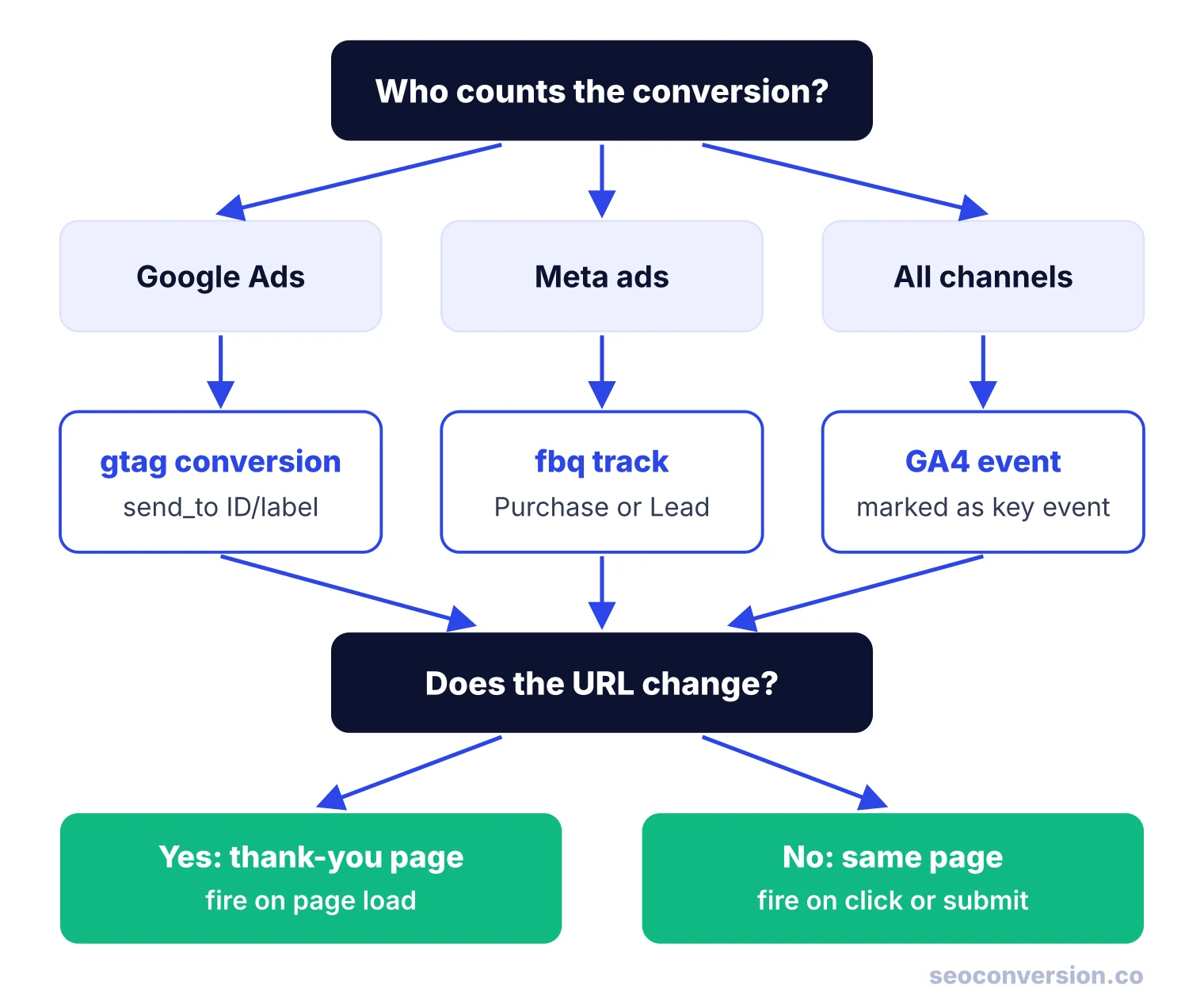
Many advertisers need more than one. A common setup: Google Ads conversion code for bidding, the Meta Pixel for Meta campaigns, and GA4 key events to see every channel, including organic search, in one place.
Google Ads conversion tracking code
Step 1: Create the conversion action
Decide what to count first: purchases, quote or contact forms, calls from the site, booked demos, trial sign-ups. Track the actions that make money, plus one or two steps just before them at most. Then, in Google Ads, go to Goals, then Conversions, then Summary, and create a conversion action for your website. Pick the category (purchase, submit lead form, and so on), choose to set it up manually with code, and set the value and count options. Google can also build simple conversions from a URL with no code, which works for a plain thank-you page once the Google tag is installed.
Step 2: Install the Google tag on every page
This is the base code. Google’s Google tag installation guide has you paste it between the <head> tags. Replace AW-123456789 with your own tag ID:
<!-- Google tag (gtag.js) -->
<script async src="https://www.googletagmanager.com/gtag/js?id=AW-123456789"></script>
<script>
  window.dataLayer = window.dataLayer || [];
  function gtag(){dataLayer.push(arguments);}
  gtag('js', new Date());
  gtag('config', 'AW-123456789');
</script>
If GA4 already loads gtag.js on your site, do not paste a second copy. Add one line, gtag('config', 'AW-123456789');, under the existing GA4 config line. Two loaders on the same page is one of the most common causes of doubled data.
Step 3: Add the event snippet where the conversion happens
For a conversion that loads a confirmation page, put the event snippet on that page only, after the Google tag:
<!-- Event snippet for Purchase conversion page -->
<script>
  gtag('event', 'conversion', {
    'send_to': 'AW-123456789/AbC-D_efG-h12_34-567',
    'value': 1.0,
    'currency': 'USD',
    'transaction_id': ''
  });
</script>
Where to find your conversion ID and label
The send_to value has two halves. The part before the slash (AW-123456789) is the conversion ID: it is the same for every conversion in the account. The part after the slash is the conversion label: it identifies this one conversion action. Both are shown in the conversion action’s tag setup in Google Ads, on the event snippet tab and on the Google Tag Manager tab. A wrong label sends the conversion to a different action, or nowhere.
Track a click instead of a page load
For a phone link, a download or a form that does not redirect, Google’s click version wraps the event in a function and waits for the hit to be sent before following the link:
<script>
function gtag_report_conversion(url) {
  var callback = function () {
    if (typeof(url) != 'undefined') {
      window.location = url;
    }
  };
  gtag('event', 'conversion', {
    'send_to': 'AW-123456789/AbC-D_efG-h12_34-567',
    'value': 1.0,
    'currency': 'USD',
    'event_callback': callback
  });
  return false;
}
</script>

<a href="tel:+15555550123"
   onclick="return gtag_report_conversion('tel:+15555550123');">Call us</a>
For a form that shows a success message in place, call gtag('event', 'conversion', ...) from the form’s success callback, not from the submit button. A click on Submit also fires when validation fails.
Install the code with Google Tag Manager instead
If your site runs Google Tag Manager, you paste nothing in the page. You add two tags in the container:
- A Google tag with your
AW-ID as the tag ID, triggered on Initialization, All Pages. This replaces the base code. - A Google Ads Conversion Tracking tag with the conversion ID and conversion label in their fields, plus value, currency and transaction ID from data layer variables, triggered by the conversion (a thank-you page view, a form success event, a click).
Test in Preview mode, then publish. Google Tag Manager also offers a Conversion Linker tag that stores the ad click data in first-party cookies; add it on all pages if the container warns that it is missing.
Meta Pixel conversion code
Meta works the same way. Create a pixel in Events Manager to get its ID, then paste the base code. According to Meta’s Pixel setup guide, it belongs between the <head> tags of every page you want to track, and you should leave the PageView call in place:
<!-- Meta Pixel Code -->
<script>
  !function(f,b,e,v,n,t,s)
  {if(f.fbq)return;n=f.fbq=function(){n.callMethod?
  n.callMethod.apply(n,arguments):n.queue.push(arguments)};
  if(!f._fbq)f._fbq=n;n.push=n;n.loaded=!0;n.version='2.0';
  n.queue=[];t=b.createElement(e);t.async=!0;
  t.src=v;s=b.getElementsByTagName(e)[0];
  s.parentNode.insertBefore(t,s)}(window, document,'script',
  'https://connect.facebook.net/en_US/fbevents.js');
  fbq('init', '{your-pixel-id-goes-here}');
  fbq('track', 'PageView');
</script>
<noscript>
  <img height="1" width="1" style="display:none"
       src="https://www.facebook.com/tr?id={your-pixel-id-goes-here}&ev=PageView&noscript=1"/>
</noscript>
<!-- End Meta Pixel Code -->
Then fire a standard event where the conversion happens. A purchase on the order confirmation page:
<script>
  fbq('track', 'Purchase', {value: 129.00, currency: 'USD'});
</script>
A lead from a form that shows its message in place, fired in the success handler:
fbq('track', 'Lead', {value: 500.00, currency: 'USD'});- Standard events are Meta’s predefined names:
Purchase,Lead,CompleteRegistration,Contact,Schedule,StartTrial,Subscribe,InitiateCheckout,AddToCartand others.Purchaserequiresvalueandcurrency. - Custom events use
fbq('trackCustom', 'YourEventName', {...})for actions with no standard name. - Custom conversions need no extra code: in Events Manager you define a rule such as “URL contains /thank-you”, and Meta counts it from the base code’s page views.
GA4 conversion code
GA4 has no separate conversion snippet. You send an event with gtag (or through Google Tag Manager), then mark that event as a key event in GA4. Google’s recommended event names are purchase for orders and generate_lead for leads:
gtag('event', 'generate_lead', {
  currency: 'USD',
  value: 500.00
});
Many advertisers then import that key event into Google Ads instead of installing the Google Ads event snippet. It saves code, but GA4 reports with its own attribution and processing delay, so the numbers will not match native Google Ads tags exactly. The full GA4 setup is in Google Analytics conversion tracking.
One purchase, three conversion codes
Most sites send the same order to two or three platforms, and each one names the same fields differently. Here is one order of $129.00, number 10482, written for all three, followed by the field map.
// Google Ads
gtag('event', 'conversion', {
  'send_to': 'AW-123456789/AbC-D_efG-h12_34-567',
  'value': 129.00,
  'currency': 'USD',
  'transaction_id': '10482'
});

// GA4
gtag('event', 'purchase', {
  transaction_id: '10482',
  value: 129.00,
  currency: 'USD',
  items: [{ item_id: 'SKU_123', item_name: 'Example product', price: 129.00, quantity: 1 }]
});

// Meta Pixel
fbq('track', 'Purchase', {value: 129.00, currency: 'USD'}, {eventID: 'order-10482'});| Field | Google Ads | GA4 | Meta Pixel |
|---|---|---|---|
| Which conversion | send_to: 'AW-ID/label' | purchase | Purchase |
| Amount | value | value | value |
| Currency | currency | currency | currency |
| Deduplication key | transaction_id | transaction_id | eventID (4th argument) |
| Products | Optional, for cart data | items | contents |
Notice that Meta’s deduplication key is not a parameter: it goes in a separate fourth argument. Put it in the parameter object and Meta treats it as ordinary data.
Stop double counting: transaction IDs and event IDs
A buyer who reloads the order confirmation page, or comes back to it from an email, fires your event code again. Without a unique ID per order, that is a second sale in your reports. Each platform handles this differently:
- Google Ads ignores a second conversion for the same conversion action with the same
transaction_id. The ID must come from your order system, generated per order. A hardcoded ID, or an empty one, defeats the purpose. - Google Ads count setting: set purchases to “Every” and leads to “One”, so a visitor who submits the same form three times after one ad click counts once.
- GA4 also uses
transaction_idonpurchaseevents to drop duplicates. - Meta needs the
eventIDonly when you send the same event from the browser and from the Conversions API. Per Meta’s deduplication rules, the Pixel’seventIDmust equal the server event’sevent_id, the event names must match, and deduplication only applies within 48 hours of the first event with that ID.
Send the real value, not 1.0
The snippet Google gives you contains 'value': 1.0. Left as is, every sale is worth one dollar in your reports and in value-based bidding. For a store, replace it with the order total from your platform’s confirmation page variables. For leads, there is no order total, so you put in what a lead is worth on average.
Worked example: the value in a lead form snippet
Illustrative numbers for a service business running Google Ads to a quote form:
So the event snippet sends 'value': 500.00. Now compare one month with $6,000 of ad spend and 30 tracked leads:
| Snippet value | Reported conversion value | Reported ROAS |
|---|---|---|
| 1.0 (default) | $30 | 0.005 |
| 500.00 | $15,000 | 2.5 |
Same leads, same spend. With the default, the campaign looks like it returns half a cent per dollar and any value-based bid strategy has nothing to optimize toward. Revisit the number when your close rate or deal size changes. The method for each type of conversion is in how to calculate conversion value.
How to check the code works
- Open your site with the ad click parameters you want to test, or click a real ad, and complete a test conversion.
- Watch the request leave the browser. In Chrome DevTools, open the Network tab and filter by
conversionfor Google Ads,collectfor GA4, andfacebook.com/trfor Meta. Open the request and confirm the value, currency and order ID. - Use each platform’s debugger: Google Tag Assistant for the Google tag, Google Tag Manager Preview mode for containers, GA4 DebugView, and the Meta Pixel Helper extension or the Test Events tool in Events Manager.
- Check the status column of the conversion action in Google Ads (Goals, Conversions, Summary) and the event list in Events Manager. Status updates are not instant, so test today and check again the next day before changing anything.
Failure modes and how to fix them
| Symptom | Likely cause | Fix |
|---|---|---|
| Conversions about double your orders | Base code installed twice (hardcoded and in GTM), or no transaction ID on a reloadable thank-you page | Keep one Google tag per page; pass the order ID as transaction_id |
| Every conversion worth $1 | Default value: 1.0 left in the snippet | Pass the order total, or a lead value |
| Value in the wrong currency | currency missing or hardcoded on a multi-currency store | Send the currency from the order, every time |
| Zero conversions on a React, Vue or other single-page site | Page-load snippet never fires because the URL changes without a page load | Fire the event in the success callback or on the route change |
| Conversions with no matching orders | Thank-you page reachable without converting (bookmarks, crawlers, internal links) | Fire on the success event, or check for an order ID before firing |
| Form conversions higher than form entries | Event fires on the Submit click, including failed validation | Fire on the success response, not the click |
| Code fires but platform shows nothing | Wrong conversion label, event code placed before the base code, or ad blocker | Compare send_to with the conversion action; load the base code first; test in a clean browser |
| Fewer conversions than real orders | Consent declined, blockers, Safari cookie limits, conversions from non-ad visits | Expected in part; see the next two sections |
Privacy, consent and lost conversions
Conversion tracking code relies on cookies and on the click ID surviving until the conversion. Some conversions will always be missed: when visitors decline consent, use blockers, or switch devices. Platforms offer three ways to recover part of that gap:
- Consent mode adjusts Google tags to each visitor’s choice and models some of the missing conversions. If you advertise to visitors in the EEA, the UK or Switzerland, Google expects it; see consent mode v2.
- Enhanced conversions (Google) send a hashed email or phone number with the conversion, which Google matches to signed-in accounts to credit ad clicks it could not otherwise link.
- Server-side delivery such as the Meta Conversions API sends the conversion from your server, which browser blocking cannot stop. Pair it with the Pixel and the shared
eventIDabove.
Ad conversion code does not count organic or AI conversions
Google Ads and Meta code credit conversions to ad interactions. A buyer who found you through a Google search result, Bing or a ChatGPT answer has no ad click ID, so the ad platform either does not report that sale or does not credit it to anything. That is by design, but it means the codes above tell you nothing about what your SEO pages earn.
To see those conversions you need site-wide measurement that records the source of every visit and reports conversions by landing page: GA4 key events, or a first-party tracker. SEOConversion is one option: a single script that counts conversions and their value from Google, Bing and AI assistants such as ChatGPT and Perplexity for each landing page. The method itself is in SEO conversion tracking and, for assistants, in AI conversion tracking.
FAQ
How do I get a conversion tracking code?
You generate it inside the platform that will count the conversion. In Google Ads, create a conversion action under Goals, then open its tag setup to copy the Google tag and the event snippet, or the conversion ID and label for Google Tag Manager. For Meta, create a pixel in Events Manager to get the base code, then add an fbq track call for each conversion.
Is conversion tracking code free?
Yes. The Google tag, Google Ads event snippets, the Meta Pixel, GA4 and Google Tag Manager cost nothing to install. You pay for the ads, not the measurement. Paid tools come in when you want server-side delivery, call tracking or reporting the free tags do not give you.
How do I check that conversion tracking is working?
Complete a real test conversion, then confirm the request left the browser. Use Google Tag Assistant for Google tags, the Meta Pixel Helper extension or the Test Events tool in Events Manager for Meta, and DebugView for GA4. Then check the status column of the conversion action in Google Ads, which can take a while to update.
What are the different types of tracking codes?
Base codes load on every page (the Google tag, the Meta Pixel base code, a Google Tag Manager container). Event codes fire on a conversion, either on a page load or on a click. Some platforms also count conversions from URL rules with no extra code, and server-side or offline uploads send conversions without any browser code at all.
Where do I put the conversion tracking code?
The base code goes in the head of every page. The event code goes only where the conversion happens: on the confirmation page for page-load conversions, or inside the click or form success handler for actions that do not change the URL. Never put the event code on every page, or every visit becomes a conversion.
Can conversion tracking code track offline sales?
Not on its own. Browser code only sees what happens on your site. To count a deal closed by phone or in a store, keep the click ID or lead ID with the lead in your CRM, then upload the closed deal to the ad platform as an offline conversion.
Your ad tags skip organic and AI conversions. Count them too.
SEOConversion is a cookieless, first-party tracker that shows the conversions and value Google, Bing and AI assistants like ChatGPT bring to each landing page, from one script.
Start free