
Content Decay: How to Spot It, Price It and Fix the Pages That Pay


Content decay is the slow, steady loss of organic clicks, rankings and conversions on a page that used to perform well. It happens because the page stays the same while the query, the competing results and the searcher’s needs move on. You fix it by confirming the drop is real decay, pricing what each page has lost, then refreshing, merging or retiring the pages worth the effort.
This guide covers how to tell decay from a tracking break, a seasonal dip or a technical problem, a symptom table that maps Search Console patterns to fixes, and a worked example that ranks decaying pages by lost revenue instead of lost clicks. If you have already decided to cut or merge pages, the content pruning guide covers that step in detail.
What Content Decay Is (and Is Not)
A typical article grows after publishing as it gets indexed, earns links and climbs. It peaks, holds for a while, then slides as newer and better pages appear. That last phase is decay. Left alone, the slide usually continues. Refreshed in time, the page can recover, often faster than a new page could rank from zero.
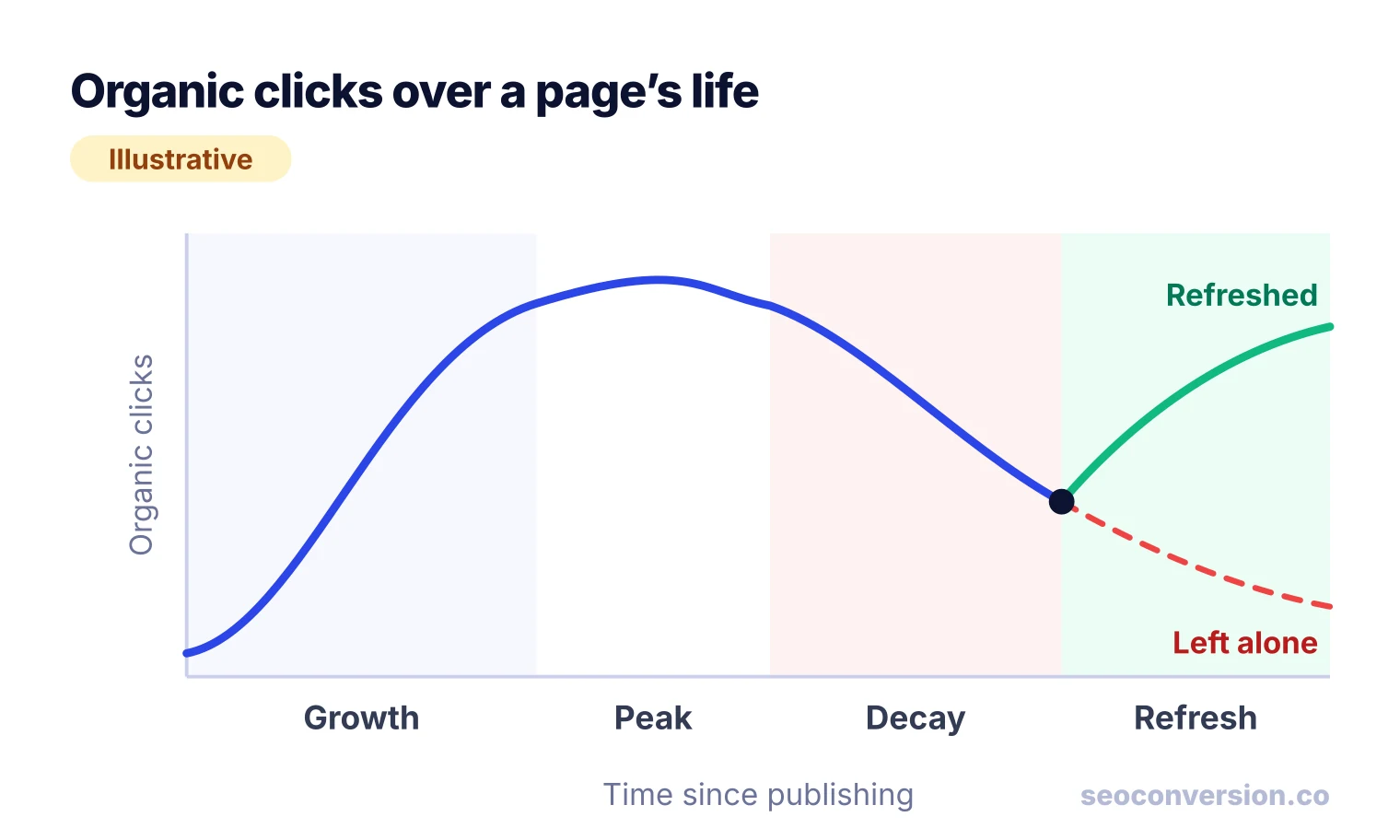
Three things separate decay from other drops:
- It is gradual. Clicks fall over weeks or months, not overnight. A cliff on a single date points to a technical problem, a migration or an algorithm update.
- It is page-level. A few pages slide while the rest of the site holds. When everything drops together, look at the site, not the content.
- It survives a year-over-year check. A page that is down against last quarter but flat against the same months last year is seasonal, not decaying.
Decay is not only a traffic problem. A page can keep its clicks and stop converting because the offer, the pricing table or the form it points to went stale. That is decay too, and it costs more than a traffic dip on a page that never converted.
Why Pages Decay
Most decay comes from one of these causes, often two at once:
- Outdated information. Prices, screenshots, statistics, product names and steps change. Readers notice, and so do the pages that replace yours.
- Better competitors. Someone publishes a more complete, more current or more useful page for the same query and takes your position.
- Intent shift. The searcher now wants something else: a tool instead of an article, a comparison instead of a definition, a checklist instead of an essay. The top results change format and your page no longer fits.
- Ranking system updates. Google keeps changing how it assesses content. An update can move a page that was borderline for the query.
- Keyword cannibalization. A newer page on your own site targets the same query and splits clicks with the older one. The total may hold while each URL looks like it is decaying.
- Lost links and weak internal linking. Links to the page break or disappear, and new posts never link back to it, so it gets less authority and fewer crawls.
- A changed results page. AI Overviews, more ads, video carousels or People Also Ask boxes push the classic results down. The page keeps its position and still loses clicks.
- Falling interest. Fewer people search for the topic at all. This is demand loss, not decay, and no refresh fixes it.
Speed varies by content type. News, trend posts, “best tools” lists and anything with a year in the title decay fastest. Tutorials for software that ships updates decay at the pace of the software. Glossaries, definitions and reference pages last longest, though even evergreen pages drift when the examples or the competing results improve.
Is It Content Decay or Something Else?
Before you rewrite anything, rule out the causes a rewrite cannot fix. Google’s own guide to debugging traffic drops lists technical issues, security issues, spam policy problems, algorithm updates, seasonality and changing interest as separate causes, and suggests looking at the full 16 months of Search Console data to spot yearly patterns. Work through these four questions in order:
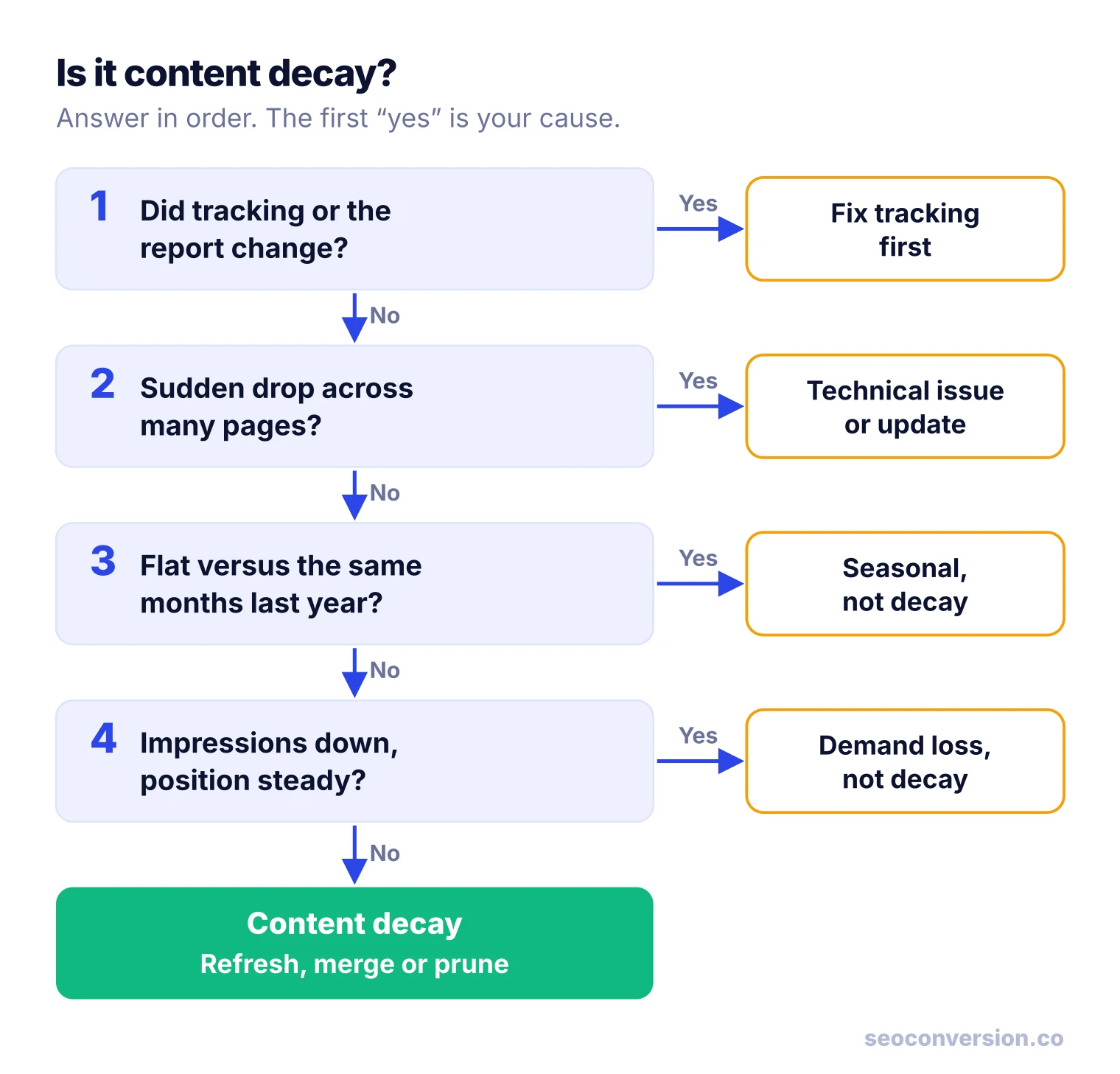
- Did tracking or the report change? A removed tag, a consent banner change, a new filter or a moved conversion event can look like a traffic drop in analytics. Search Console clicks are a good cross-check because they do not depend on your tag.
- Is it a sudden drop across many pages? Check the Page indexing, Crawl stats, Manual actions and Security issues reports, and compare the date with known Google updates and your own releases. A noindex tag, a broken canonical or a migration is a technical fix, not a content fix.
- Is it flat against the same months last year? Compare the drop period with the same period a year earlier, not only with the previous period.
- Are impressions down while position held? Then fewer people are searching. Confirm in Google Trends. The page did not get worse. Demand moved.
Here is why question 3 matters. Say a tax deadline checklist got 6,000 organic clicks in January to March and 3,000 in April to June. Against the previous quarter, that is a 50% drop. Against April to June of last year, when it got 3,100 clicks, it is down about 3%. That page is seasonal and healthy. Rewriting it would waste the time and could break what works. (Illustrative numbers.)
Flag a page when its clicks over the last 3 months are down 20% or more against the same 3 months last year, it lost at least 100 clicks, and it is older than about 6 months. This is our starting threshold, not an industry standard: raise the click floor on a large site and lower it on a small one. Pages younger than 6 months are still finding their level, so judge them later.
How to Find Decaying Pages in 5 Steps
You need Search Console for clicks and positions and an analytics tool for conversions. Third-party tools such as Ahrefs or Semrush can show estimated traffic trends and position history, which helps for competitor comparison, but your own Search Console data is the record of what your pages actually received.
Step 1: Compare the same months year over year
In Search Console, open Performance, then Search results. Set the date to Compare and pick the last 3 months against the same 3 months last year. Open the Pages tab and turn on clicks, impressions, CTR and average position. The Performance report documentation defines CTR as clicks divided by impressions and average position as the position of your topmost result, so a page with several URLs or features in the results can look better than the click it actually gets. Leave out the last few days, since the newest data is preliminary.
Step 2: Export and flag
Export the table to a spreadsheet. Add columns for click change and percent change, then flag pages that pass your threshold. Sort by clicks lost. You now have a candidate list, not a priority list. The priority comes in step 4.
Step 3: Read the pattern for each page
Click into each flagged page and look at the Queries tab for the same comparison. Which queries lost clicks, and did they lose impressions, position or CTR? The pattern tells you the cause. Use the symptom table in the next section.
Step 4: Add conversions from analytics
In GA4, open the Landing page report, filter to the Organic Search channel, and compare the same two periods with sessions and key events. Note the conversion rate each page had before the decline and what one conversion is worth. If you have not set values yet, the guide on how to calculate conversion value shows how.
Step 5: Rule out other causes
Run each candidate through the four questions above. Remove pages that are seasonal, demand-driven or hit by a technical issue, and fix those issues separately. What is left is content decay.
A list of pages by last modified date, from your sitemap or CMS, is a useful filter for finding stale pages. Age alone is not evidence of decay, though. An old page with steady clicks needs nothing, and a six-month-old page can already be losing to a better competitor.
Content Decay Symptoms and What Each One Means
A decline in clicks tells you where to look, not why. Split the movement into impressions, position and CTR, and each combination points to a different cause and a different fix:
| What you see in Search Console | Likely cause | What to do |
|---|---|---|
| Position down, impressions down, CTR stable | Competitors or outdated content | Refresh against today’s top results: facts, depth, format, intent |
| Position stable, impressions stable, CTR down | Results page changed (AI Overview, ads, features) or a weaker title | Rewrite the title and description, answer the query in the first lines, check AI referrals |
| Impressions down, position stable | Demand loss | Confirm in Google Trends. Refresh will not help; retarget or accept |
| Queries move to another URL on your site | Cannibalization | Merge into the stronger URL and 301 the other |
| Some queries gone, new ones appear | Intent shift | Restructure the page around the new intent, or build a new page for it |
| Clicks steady, key events down | Conversion decay: stale offer, broken form, moved event | Test the form, update the CTA and offer, verify the tracking |
| Everything down on one date, many pages | Not decay: technical, update or migration | Debug the site first |
The CTR row deserves attention. A page can hold position 3 and lose a large share of its clicks because an AI Overview or a new results feature now answers the question above it. A content refresh will not move that page up, because it did not move down. What helps is a sharper title, a clear answer the overview can cite, and measuring whether the page now earns visits from AI answers instead of classic results.
Rank Decaying Pages by Lost Value, Not Lost Clicks
Most audits sort decaying pages by clicks lost and start at the top. That picks the page that lost the most visitors, which is often not the page that lost the most money. A traffic-heavy informational post can shed thousands of clicks that never converted, while a comparison page quietly loses a few hundred visits that used to become demos. Price each loss before you choose:
Use the conversion rate from the earlier period, when the page was healthy. If the rate itself dropped, you have conversion decay on top of traffic decay, and the loss is bigger than this formula shows.
Worked Example: Four Decaying Pages, One Clear Priority
A B2B software company compares July to September with the same months last year. Four pages pass the flag threshold. All numbers are illustrative.
| Page | Clicks last year | Clicks this year | Clicks lost | Conv. rate | Value per conv. | Lost value |
|---|---|---|---|---|---|---|
| /blog/email-subject-lines | 4,000 | 2,600 | 1,400 | 0.5% (newsletter) | $2 | $14 |
| /glossary/what-is-a-crm | 2,200 | 1,500 | 700 | 0.1% (trial) | $150 | $105 |
| /blog/crm-integration-guide | 1,500 | 1,050 | 450 | 1.2% (trial) | $150 | $810 |
| /blog/crm-pricing-comparison | 900 | 600 | 300 | 2% (demo) | $400 | $2,400 |
The arithmetic for each row:
- Email subject lines: 1,400 × 0.5% = 7 signups × $2 = $14 lost.
- CRM glossary: 700 × 0.1% = 0.7 trials × $150 = $105 lost.
- Integration guide: 450 × 1.2% = 5.4 trials × $150 = $810 lost.
- Pricing comparison: 300 × 2% = 6 demos × $400 = $2,400 lost.
Sorted by clicks lost, the email post comes first and the pricing comparison comes last. Sorted by lost value, the order flips: the pricing comparison carries $2,400 of the $3,329 lost this quarter, about 72%, from the smallest click loss on the list. The integration guide is second. The email post, the biggest traffic loser, is worth $14 a quarter and can wait.
The fix order follows: refresh the pricing comparison first (prices and plans change, which is the most likely reason it slid), then the integration guide. The glossary page gets a light update when someone has time. The email post is a candidate for the prune, merge or keep decision rather than a full rewrite.
This only works if you can see conversions and value by organic landing page. If your analytics cannot show that, the SEO conversion tracking guide explains how to set it up. SEOConversion reports conversions and their value by landing page for organic search and AI assistant referrals, which is the table this example needs.
How to Fix Content Decay
Pick the fix from the cause you found, not from a generic checklist. In order of how often they apply:
Refresh the page
- Search the query again and read the current top results. Note the format, the sections and the questions they cover that you do not.
- Replace outdated facts, prices, screenshots and steps. Cite current primary sources.
- Add what is missing: a worked example, a comparison table, a diagram where a process is hard to follow, a section for a new sub-question, a better first paragraph that answers the query directly.
- Check which queries the page gets now in Search Console and use their wording in headings and answers where it fits naturally.
- Cut sections that no longer help. Longer is not the goal.
- Rewrite the title and meta description if CTR fell while position held.
- Keep the URL. A new URL throws away the links and history the old one earned.
Merge overlapping pages
If two of your pages split the same query, combine the best of both on the stronger URL and redirect the weaker one with a 301. Update internal links to point at the surviving page.
Redirect or remove what is obsolete
A page about a discontinued product or an expired event cannot be refreshed into relevance. Redirect it to the closest useful page, or remove it if nothing fits. Check its conversions and links before you do. The content pruning guide has the full decision process.
Rebuild internal links and earn new ones
Link to the refreshed page from newer, related posts with descriptive anchor text, and fix broken links on and to the page. A real update is also a reason to re-share the page and pitch it to sites that linked to the old version.
Fix the conversion path
For conversion decay, test the form or checkout from the page, update an offer that has expired, and make sure the key event still fires. A refresh that brings back traffic to a broken form brings back nothing.
Where the Guides Disagree: Bumping the Date
Some refresh guides tell you to change the “last updated” date and the year in the title to signal freshness. Others say date changes do nothing. Google’s guidance on creating helpful content settles it: it asks whether you are changing the date of pages to make them seem fresh when the content has not substantially changed, and it says that adding or removing lots of content just to make a site seem fresh will not help.
So update the date when the update is real, and say what changed. A visible date helps readers judge whether a page is current. It is not a ranking lever by itself, and a new date on old content is a trust problem when readers notice.
Content Decay and AI Assistants
Decay now shows up in two places. Search clicks fall when a page slips in the results or when an AI Overview answers the query above it. Visits from assistants like ChatGPT and Perplexity can also fall when a page stops being the source they cite, often for the same reasons: outdated facts, a thinner answer than the alternatives.
Track AI assistant referrals per landing page next to organic clicks, so you can see whether a page that lost search clicks gained, held or lost AI visits. The guide to AI traffic analytics shows how to separate them in GA4. Keep in mind that some assistant visits arrive with no referrer and land in Direct, so this view undercounts AI traffic rather than overcounting it.
How to Tell If a Refresh Worked
Write down the date you published the update and the page’s clicks, position and key events for the 3 months before. Request indexing in Search Console so Google recrawls it sooner. Then give it several weeks before judging, because rankings move only after the page is recrawled and reassessed.
Compare the weeks after the update with the same weeks before it and with the same weeks last year, and track conversions, not only clicks. If you refresh a batch of similar pages, hold a few back as a control so you can tell your change from a site-wide trend. The guide to running an SEO experiment covers that setup.
How Often to Check for Content Decay
- Monthly: your top 20 to 50 landing pages by conversion value. These are where a slide costs the most.
- Quarterly: the full year-over-year export from step 1, flagged and priced.
- On a calendar: pages with prices, plans, years or product steps in them, reviewed when the facts change, not when the traffic has already gone.
Decay is normal. Every page that ranks will eventually be outpaced by the query or the competition. The teams that keep their organic revenue are the ones that notice it early, price it, and fix the few pages that matter first.
FAQ
What does SEO content mean?
SEO content is any page written and structured so that people find it through search engines: blog posts, guides, product and category pages, glossaries, tools. It targets a real query, answers it better than the alternatives, and is easy for search engines to crawl and understand. All SEO content can decay, because the query, the competing pages and the facts keep moving after you publish.
What is content optimization in SEO?
Content optimization is improving an existing page so it matches what searchers need today: the right intent and format, accurate facts, clear headings, a title that earns the click, and internal links that help people and crawlers reach it. Refreshing a decaying page is content optimization aimed at a page that already proved it can rank. That is why it usually pays back faster than a new post on the same topic.
How often should you check for content decay?
Review your top landing pages monthly and the full list quarterly. Check fast-moving pages, like tool roundups, pricing and anything with a year in the title, more often than glossary or reference pages. Judge each page on a window of at least 3 months compared with the same months a year earlier, so one bad week or a seasonal dip does not trigger a rewrite.
Does changing the published date help a decaying page?
Not on its own. Google’s helpful content guidance lists changing the date of pages to make them seem fresh when the content has not substantially changed as a warning sign. Update the date when you have made a real update, and show readers what changed. The improvement in the content is what can win the rankings back, not the new date.
Is SEO dead now with AI?
No, but the clicks are spread differently. AI Overviews and assistants like ChatGPT answer some queries without a visit, so a page can keep its ranking and still lose clicks. Pages that stay accurate and specific keep earning search clicks and also get cited and linked by AI answers. Measure both organic and AI assistant referrals per landing page, and judge pages on the conversions they produce, not on clicks alone.
What is the 80/20 rule in SEO?
It is the observation that a small share of your pages usually drives most of your organic results, so that is where your time should go. Applied to content decay, it means you do not refresh every declining post. You price each decline in conversions and value, then fix the few pages that carry most of the lost value, as in the worked example in this article.
See which decaying pages are costing you conversions.
SEOConversion shows conversions and their value by landing page for organic search and AI assistants, so you can refresh the pages that lost the most money first.
Start free